

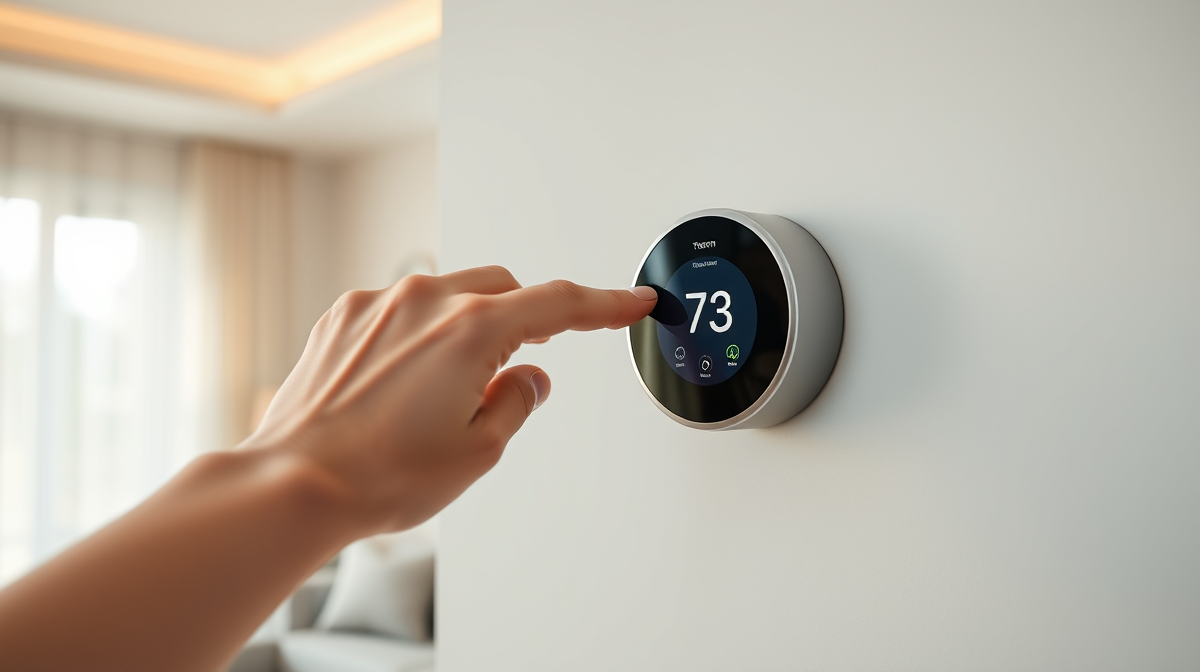
Are your smart thermostat woes leaving you hot under the collar or shivering in frustration? A malfunctioning smart thermostat can negate its impressive energy-saving benefits and disrupt your home comfort. Understanding and resolving common issues yourself can restore efficiency and ease. This guide will walk you through typical problems like Wi-Fi disconnections, incorrect temperature readings, and unresponsive controls, providing simple, DIY troubleshooting steps to get your climate control back on track.
Resolving Wi-Fi Connectivity Challenges
One of the most common frustrations with smart thermostats is a lost or inconsistent Wi-Fi connection. Without a stable connection, you lose access to remote control, smart scheduling, and crucial integration with other smart home devices. This can undermine the very purpose of an advanced thermostat, impacting its ability to provide eco-friendly energy savings.
Diagnosing the Disconnect
- Check Your Router and Internet: First, confirm your home Wi-Fi network is active and working. Can other devices connect to the internet? If not, the issue might be with your internet service provider or router.
- Router Proximity and Obstacles: Smart thermostats, especially older models, perform best on the 2.4 GHz Wi-Fi band. Ensure your thermostat isn’t too far from your router or obstructed by dense walls or large appliances that can cause interference.
- Thermostat and Router Reboot: Often, a simple restart is all it takes. Try power cycling your thermostat (usually by turning it off and on via its interface or briefly flipping its circuit breaker). Then, reboot your Wi-Fi router by unplugging it for 30 seconds and plugging it back in.
- Network Settings Verification: Log into your thermostat’s app to ensure the Wi-Fi credentials are correct. If you’ve recently changed your Wi-Fi password or network name, you’ll need to update these on your thermostat.
Tackling Unreliable Temperature Readings
An inaccurate temperature reading means your thermostat isn’t reflecting the true climate in your home, leading to inefficient heating or cooling cycles and unnecessary energy waste. Your system might run too long or not enough, creating discomfort and higher bills.
Calibrating for Accuracy
- Thermostat Placement is Key: Ensure your thermostat isn’t in an area prone to drafts (near windows or doors), direct sunlight, or close to heat-generating appliances (televisions, lamps, kitchen appliances). These can skew readings significantly.
- Clear the Vents: Smart thermostats contain internal sensors that can become obstructed by dust or debris. Gently clean any visible vents on the thermostat unit with a soft brush or compressed air.
- Manual Calibration: Many smart thermostats offer a calibration setting within their advanced menu. Consult your device’s manual to see if you can manually adjust the temperature offset to match an external thermometer.
- Utilize External Sensors: For larger or multi-zone homes, consider adding external temperature sensors (if your system supports them). These can provide a more accurate average temperature across different areas, preventing hot or cold spots.
When Controls Go Unresponsive or Power Issues Arise
Nothing is more frustrating than a smart device that won’t respond to your commands. Whether the screen is frozen, buttons are unresponsive, or the unit appears completely dead, these issues demand immediate attention to restore control over your home’s climate.
Restoring Control and Power
- Perform a Reset: A hard reset can clear software glitches. Many thermostats have a small reset button, or you can cycle the power by turning off the associated circuit breaker for your HVAC system for a few minutes before turning it back on.
- Check the Power Source: For battery-powered models, replace the batteries with fresh ones. For wired thermostats, ensure the circuit breaker for your furnace or air handler hasn’t tripped.
- Verify C-Wire Connection: Most smart thermostats require a “common wire” (C-wire) to draw continuous power, preventing battery drain and ensuring full functionality. If your system lacks a C-wire, or if it’s poorly connected, it could lead to intermittent power issues or an unresponsive display. Professional installation of a C-wire might be necessary.
- Firmware Updates: Ensure your thermostat’s firmware is up to date through its mobile app. Outdated software can often cause performance issues or unresponsiveness.
Optimizing Scheduling and Smart Home Integration
Smart thermostats excel at learning your habits and integrating with other devices for seamless home automation. When schedules fail to activate or your thermostat isn’t communicating with your broader smart home ecosystem, you miss out on significant convenience and energy efficiency.
Ensuring Smooth Operations
- Review App Settings: Thoroughly check all schedules, automations, and geofencing settings within your thermostat’s dedicated mobile app. Make sure they are correctly enabled, timed, and haven’t been accidentally overridden.
- Time Zone Accuracy: Confirm that your thermostat’s time zone is correctly set. Incorrect time zones can cause schedules to run at the wrong times.
- Smart Home Platform Connection: If your thermostat is integrated with platforms like Google Home, Amazon Alexa, or Apple HomeKit, verify that the connection is active and that your thermostat has the necessary permissions. Re-linking the device to the platform can often resolve communication issues.
- “Away” Mode Conflicts: Some smart thermostats use geofencing to detect when you’re home or away. Ensure this feature is configured properly to avoid conflicting with your set schedules.
Conclusion
Troubleshooting your smart thermostat doesn’t have to be daunting. By systematically checking Wi-Fi, sensor placement, power sources, and app settings, you can often resolve common issues yourself, quickly restoring your home’s comfort and energy efficiency. Don’t let minor glitches prevent you from enjoying the full benefits of smart climate control. Take these steps, and keep your eco-friendly smart home running smoothly.